Setting up a smart home for elderly relatives should start with the problems that actually make daily life harder: missed calls, dark hallways, forgotten plugs, awkward heating controls and family worry when nobody has heard from them.
In This Article
- Start With the Problem, Not the Gadgets
- Choose One Control System and Keep It Simple
- Smart Home Elderly Relatives Setup for Lighting, Power and Heating
- Add Reassurance Without Turning the Home Into a Surveillance Project
- Set Up Family Access, Alerts and Privacy Properly
- What the Kit Costs in the UK
- Test the Routine With the Person Who Has to Live With It
- Frequently Asked Questions
Start With the Problem, Not the Gadgets
The mistake is buying a box of smart-home kit and then trying to make an older relative adapt to it. That gets old quickly. Start by writing down the three moments that cause the most friction in their home.
For most families, the useful jobs are mundane:
- Making movement safer: lights coming on automatically in the hall, bathroom route or kitchen.
- Reducing forgotten switches: a lamp, radio or electric blanket socket that turns off on a schedule.
- Making contact easier: a voice assistant or smart display for calling family without hunting for a phone.
- Offering light-touch reassurance: a door sensor, camera pointed at the front path, or alert if a routine device has not been used.
Do not start with a full smart alarm, doorbell, thermostat, smart blinds and four apps. That may suit a tech-friendly household, but it is too much for someone who only wants the house to feel familiar. A good first setup should be boring in the best way: it quietly removes one daily annoyance.
If the main concern is falls, technology is not the whole answer. Age UK’s falls advice rightly puts movement, strength, balance and home hazards at the centre of prevention, so treat smart lighting as support rather than a medical fix: Age UK falls prevention guidance. A motion sensor in the hallway helps, but loose rugs, bad slippers and dim bulbs still need dealing with.
Ask Permission Before You Design Anything
This is not your home. That matters.
Sit down with the relative and ask what they would actually find useful. Some people love the idea of saying “Alexa, call my daughter”. Others hate a speaker listening in the room. Some are happy with a video doorbell at the front door but would feel watched by an indoor camera.
The right question is not “what can we automate?” It is “what would make this house easier without making it feel less yours?”
Pick One Room for the First Week
Choose the highest-value room or route. In many UK homes, that is the hallway and landing, because night-time movement is where lighting matters. In a bungalow, it might be the bedroom-to-bathroom route. In a flat, it may be the entryway and living room.
A first week could be as simple as:
- Hall lamp: smart plug or bulb scheduled from dusk to bedtime.
- Landing light: motion sensor or smart bulb scene for low brightness at night.
- Voice call: one smart speaker or display set up with named contacts.
That is enough to learn whether the relative likes the system. If they do not use it, no amount of extra kit fixes the problem.
Choose One Control System and Keep It Simple
For elderly relatives, the best smart-home platform is usually the one family members can support quickly. If three people in the family already use Alexa, buy Alexa-compatible kit. If everyone uses iPhones and HomePods, Apple Home is cleaner. If the family is on Android, Google Home may be the easiest.
My bias is to keep elderly-relative setups on one ecosystem unless there is a strong reason not to. Mixing Alexa speakers, Apple automations, Tapo plugs and a separate alarm app can work, but it creates support calls nobody enjoys.
Voice Assistant or Smart Display?
A smart speaker is cheaper and less intrusive. An Amazon Echo Dot is often around £45-£55 at Argos or Amazon UK, and it is enough for reminders, music, timers and family calls. A Google Nest Mini sits in a similar budget range when on offer.
A smart display costs more but can be much better for calls. An Echo Show 8 is currently listed around £179.99 at Argos, while the smaller Echo Show 5 often appears nearer £80-£100 depending on offers. The screen helps with video calls, doorbell previews, calendar reminders and seeing who is calling before answering.
For a relative with poor hearing, a display is often worth the extra money. For someone who dislikes screens, a simple speaker is less annoying.
Name Things Like a Human
Device names should match the words your relative will say naturally. Use “hall lamp”, “kitchen radio” and “bedroom light”, not “Tapo P110M Socket 3”. If you set up voice control, test it with their accent and phrasing.
Bad names cause daily friction. “Alexa, turn on the landing” is easy. “Alexa, turn on Upstairs Motion Scene Two” is ridiculous.
Keep the App on Family Phones, Not Just Theirs
Most older relatives do not want to manage automations. They want them to work. Put the main smart-home app on at least one family member’s phone with the right shared access, and leave the relative with only the controls they actually want.
The useful support setup is:
- Relative: voice commands, simple app buttons if they want them, and normal wall switches still working.
- Family helper: admin access for routines, alerts, updates and troubleshooting.
- Fallback: written notes near the router with device names and what to do if Wi-Fi drops.
Smart Home Elderly Relatives Setup for Lighting, Power and Heating
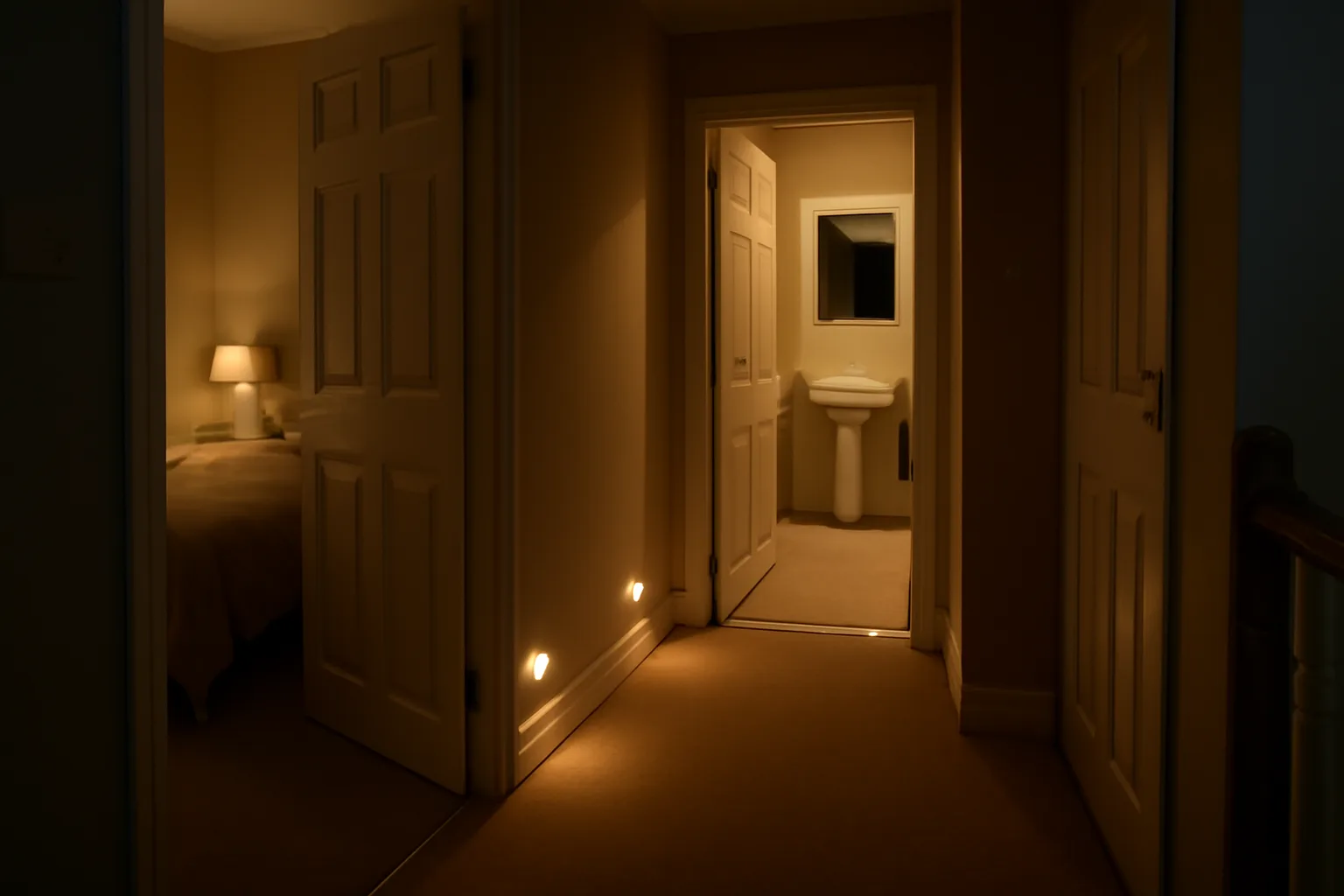
Lighting is the highest-return part of a smart home elderly relatives setup because it solves a real problem without needing much behaviour change. It also keeps working even if the person never opens an app.
Start with lights before cameras. A well-lit hallway is less dramatic than a security feed, but it is more useful day to day.
Use Smart Bulbs Where the Switch Stays On
Smart bulbs work well for lamps and lights where nobody keeps switching the wall switch off. A Philips Hue white B22 bulb is roughly £25 on Amazon UK for a simple white model, while cheaper Tapo or WiZ bulbs are often around £8-£15 each. Hue is pricier but tends to be more reliable across bigger setups. Tapo is good value for one or two rooms.
For an elderly relative, I would rather fit one dependable bulb in the hallway than six cheap colour bulbs everywhere. Colour scenes are rarely needed. Warm white, low brightness at night and predictable schedules matter more.
Useful routines:
- Dusk routine: hall or living-room lamp turns on automatically around sunset.
- Night route: landing or bathroom-route light comes on at low brightness after 10pm.
- Morning cue: kitchen lamp comes on at breakfast time in winter.
Use Smart Plugs for Lamps and Radios, Not High-Risk Appliances
Smart plugs are cheap and useful. A TP-Link Tapo P100 is currently around £12.99 at Currys, while the energy-monitoring Tapo P110M is usually a little more. They are ideal for table lamps, radios and low-risk devices.
Do not use smart plugs as a clever workaround for heaters, medical devices, old electric blankets or anything that needs careful supervision. For a heated throw or blanket, use the manufacturer’s own controls and safety advice. For a kettle, I would avoid automation entirely. Nobody needs a remote kettle enough to justify the risk.
Where smart plugs shine:
- Living-room lamp: on at dusk, off at bedtime.
- Radio: on for a favourite programme, off later.
- Christmas lights: seasonal schedule without crawling behind furniture.
Be Careful With Heating Controls
Smart thermostats can help, but they are also where support calls multiply. A Hive or Google Nest thermostat can cost roughly £120-£220 before installation, and professional fitting may add £80-£150 depending on the setup. That is not a casual first purchase.
Only change heating controls if there is a clear benefit: easier scheduling, family help for an empty home, or avoiding a relative turning the heating off by mistake. If the existing thermostat is familiar and working, leave it alone.
Add Reassurance Without Turning the Home Into a Surveillance Project
Family reassurance is valid. So is privacy. The balance is not solved by buying more cameras.
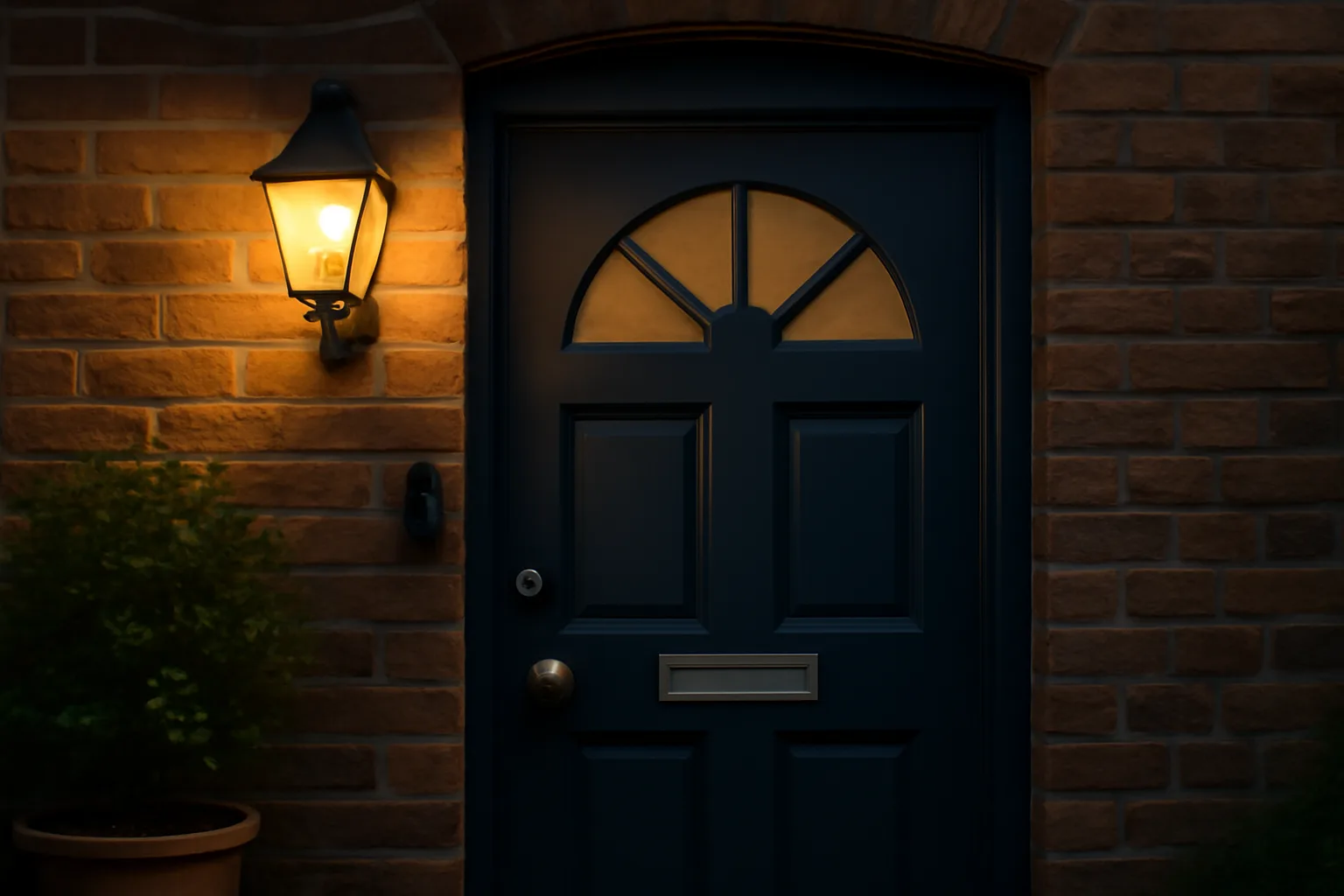
A front-door camera can be useful because it watches the approach to the house, not the person’s private living space. A Ring Indoor Camera is around £49.99 at Argos, but I would be cautious with indoor cameras unless there is a specific consented reason. A video doorbell or outdoor camera is often a better first step.
For more context on camera choices, SmartHomeSetup already has detailed guides to smart doorbells, indoor security cameras and outdoor security cameras. For this setup, the point is not the sharpest 4K footage. The point is whether the device reduces worry without making someone feel monitored.
Door Sensors Can Be Less Intrusive Than Cameras
A simple contact sensor on an external door can be more respectful than a camera. It can tell a family member that the front door opened, or trigger a hallway light, without recording video.
Smart alarm sensors vary by ecosystem. A Yale Smart Alarm Starter Kit is listed around £239.99 at Argos, while individual contact sensors and motion sensors often sit around £20-£40 depending on brand. If the goal is only a hallway light or a quiet alert, do not buy a full alarm kit too early.
The best use cases are:
- Front door: alert if it opens late at night.
- Hallway motion: turn on a gentle light after dark.
- Utility room or back door: reassurance if there has been past confusion about locks.
Avoid False Alarms
False alarms destroy trust. If a motion sensor keeps triggering because of pets, sunlight or curtains, your relative will either ignore it or ask you to remove it.
Mount sensors slowly and test them for a week. For existing advice on reducing nuisance alerts, use the site’s guide to avoiding false alarms with smart security. Elderly-relative setups need fewer alerts, not more.
Set Up Family Access, Alerts and Privacy Properly
Security matters more when a family member depends on the setup. The National Cyber Security Centre’s smart-device guidance says default passwords should be changed and device settings checked when first switched on: NCSC smart devices in the home. That is not optional admin faff. It is part of the installation.
Use Strong Account Security
Use a dedicated, recoverable account structure. Do not set everything up on a phone number nobody can access later, and do not share one weak password across the family.
Minimum setup:
- Unique account password: stored in a password manager or written securely for the trusted helper.
- Two-step verification: switched on for Amazon, Google, Apple, Ring, Yale or Tapo accounts where available.
- Recovery email: controlled by the relative or trusted family helper, not an old abandoned address.
- Software updates: automatic updates enabled where the app allows it.
For a wider security check, the existing guide on securing your smart home from hackers is worth doing once the basic setup works.
Keep Alerts Actionable
Do not send the whole family every motion alert. Choose who needs to know and what they should do.
Useful alerts are specific:
- Doorbell pressed: show on the relative’s display and notify one nearby family member.
- Front door opened overnight: notify the main helper only.
- Smoke or alarm event: notify all agreed contacts.
Weak alerts are vague: “motion detected”, “device active”, “routine ran”. They create worry without helping anyone act.
Write Down the Privacy Agreement
This sounds formal, but it prevents resentment. Write a one-page note that says what is installed, who can access it, and what it is for.
For example:
- Doorbell: family can view doorbell events and answer if asked.
- Hallway sensor: used only to trigger lighting, not to monitor daily movement.
- Smart speaker: used for calls, reminders, radio and timers.
If the relative changes their mind, remove the device or change the access. Consent is not a one-time checkbox.
What the Kit Costs in the UK
You can build a useful starter setup for under £150 if you avoid the temptation to automate the whole house. A more complete reassurance setup with a display, lights, plugs, doorbell and sensors can easily reach £400-£700.
Sensible Starter Setup: About £90-£160
This is the setup I would start with for most families:
- Smart speaker: Echo Dot or similar, roughly £45-£55 from Argos or Amazon UK.
- Two smart plugs: TP-Link Tapo P100 plugs at about £12.99 each from Currys.
- Two smart bulbs: budget Tapo/WiZ bulbs around £8-£15 each, or Hue bulbs around £25 each.
- Optional motion sensor: usually £20-£40 depending on ecosystem.
That covers voice calls, lamp schedules and one safer night-time route. It is not flashy, but it solves real problems.
Better Family-Contact Setup: About £220-£400
If video calling matters, spend more on the display and less on novelty devices:
- Smart display: Echo Show 8 at about £179.99 from Argos, or smaller display nearer £80-£100 on offer.
- Lighting and plugs: £50-£100 for a few reliable bulbs and sockets.
- Doorbell or camera: roughly £50-£220 depending on brand, resolution and whether it is wired.
Check subscriptions before buying. Some cameras give live view free but charge for recorded video. A £49.99 camera can become less attractive if the useful feature needs a monthly plan.
Full Reassurance Setup: About £500-£900+
This might include a smart display, doorbell, alarm sensors, extra cameras, smart lighting and possibly heating controls. It can be worthwhile for a relative living alone, but only if the family can support it.
The running cost matters too. Smart speakers and plugs use small amounts of electricity, but subscriptions for camera recording, alarm monitoring or cloud storage add up. Budget £3-£10 per month per service where applicable, and avoid stacking subscriptions unless there is a clear need.
Test the Routine With the Person Who Has to Live With It
Do not declare the setup finished after the app says everything is connected. Sit with your relative and run through a normal day.
Use a simple test list:
- Make a call: ask them to call a named family member using the speaker or display.
- Turn a lamp on and off: use voice, the app if relevant, and the normal switch.
- Trigger the night light: walk the route after dark and check brightness is helpful, not dazzling.
- Answer the doorbell: test what happens on the display, phone and family helper’s phone.
- Recover from Wi-Fi trouble: show what still works if the internet drops.
This is where weak setups reveal themselves. Maybe the display is too far from the chair. Maybe the wake word is hard to say. Maybe the smart bulb becomes useless because the wall switch is always turned off. Fix those things before adding more devices.
Leave Normal Controls in Place
The best elderly-relative smart home still works like a normal home. Wall switches should make sense. Lamps should have obvious controls. A visitor or carer should not need a tutorial to turn a light on.
If a device makes the house harder for carers, cleaners or visiting family, simplify it. Smart-home kit should reduce dependency, not create a private technical maze.
Review It After Two Weeks
After two weeks, ask three questions:
- What do you use every day? Keep and improve those bits.
- What annoys you? Remove, rename or simplify it.
- What still feels difficult? That is the next setup job, if there is one.
The ideal result is not a futuristic house. It is a familiar home where lights are easier, calls are simpler, and family support is there without hovering.
Frequently Asked Questions
What is the best first smart-home device for an elderly relative? A smart speaker or smart display is usually the best first device because it helps with calls, reminders, timers and simple voice control. If night-time movement is the main worry, start with smart lighting instead.
Are indoor cameras a good idea for elderly relatives? Only with clear consent and a specific reason. A doorbell camera, outdoor camera or door sensor is often less intrusive and still gives useful reassurance. Avoid putting cameras in private living spaces unless the relative actively wants that support.
How much should I spend on a starter setup? A useful starter setup can cost about £90-£160 with one smart speaker, two smart plugs and two smart bulbs. A smart display and doorbell setup is more likely to land around £220-£400.
Will smart-home devices work if the Wi-Fi goes down? Some local controls may still work, but voice commands, app control, remote alerts and video features usually need Wi-Fi and internet access. Keep normal switches and manual controls usable.
Which platform is easiest for elderly relatives? The easiest platform is the one the family can support. Alexa is widely supported and simple for voice commands, Apple Home suits iPhone-heavy families, and Google Home works well for Android households.
Should I automate heating for an older relative? Only if there is a clear need. Smart thermostats can help with scheduling and family support, but they cost more and can confuse people who are happy with their existing heating controls.