You’ve just finished setting up your Ring doorbell, a few Hive smart plugs, and maybe a voice assistant in the kitchen. Everything talks to everything else, your phone controls the lot, and life feels properly futuristic. Then you read a headline about someone’s baby monitor being accessed by a stranger in another country, and that warm glow turns cold pretty fast.
Here’s the thing: smart home devices are miniature computers connected to your home network. Most of them ship with security as an afterthought — default passwords, unencrypted connections, firmware that hasn’t been updated since the factory floor. That doesn’t mean you should rip everything out and go back to mechanical light switches. It means you need to spend about an hour tightening things up, and then you can stop worrying.
This guide walks through exactly what to do, starting with the stuff that matters most.
Why Smart Homes Get Targeted
It’s rarely personal. Hackers aren’t specifically trying to watch you make toast — they’re scanning the internet for devices with known vulnerabilities, default credentials, or outdated firmware. Your smart bulb isn’t the prize. It’s the doorway.
Once inside your network through a poorly secured device, an attacker can potentially access everything else on that network: your laptop, your NAS drive, your banking sessions. The smart home device is just the weak link in the chain.
The most common attack vectors are:
- Default passwords — many devices ship with “admin/admin” or similar, and plenty of people never change them
- Outdated firmware — manufacturers patch vulnerabilities, but only if you actually install the updates
- Unencrypted local traffic — some cheaper devices send data in plain text across your home network
- Cloud account breaches — if your Tuya or SmartLife account gets compromised, everything connected to it is exposed
- Wi-Fi vulnerabilities — WPA2 has known weaknesses, and some people are still running WEP (please don’t be one of them)
The good news is that most of these are fixable in an afternoon.
Start with Your Router — It’s the Front Door
Every device in your smart home connects through your router, which makes it the single most important thing to secure. Yet most people leave it running the default settings their ISP configured.
Here’s what to change:
- Change the admin password — not your Wi-Fi password, the one you use to log into the router’s settings page (usually 192.168.1.1 or 192.168.0.1). The default is often printed on a sticker on the router itself, which is spectacularly unhelpful from a security perspective.
- Update the firmware — log into your router’s admin panel and check for updates. ISP-provided routers sometimes update automatically, but check anyway. If yours is more than five years old and no longer receiving updates, consider replacing it.
- Use WPA3 if available — if your router supports it, switch from WPA2 to WPA3. It’s meaningfully more secure. If WPA3 isn’t an option, WPA2-AES is fine. Never use WEP or WPA-TKIP.
- Disable WPS — Wi-Fi Protected Setup is a convenience feature with known vulnerabilities. Turn it off.
- Disable remote management — unless you specifically need to access your router settings from outside your home (you almost definitely don’t), turn this off.
If you’re on a standard ISP router — BT Smart Hub, Virgin Media Hub, Sky Q Hub — you can do all of this through the admin panel. It takes about 15 minutes.
Set Up a Separate Network for Smart Devices
This is the single most effective thing you can do, and it’s easier than it sounds.
Most modern routers support a guest network. Create one, give it a different password, and connect all your smart home devices to it. Keep your laptops, phones, and tablets on your main network.
Why this matters: if a smart bulb gets compromised, the attacker is stuck on the guest network. They can’t see your main devices, your file shares, or your browsing sessions. The blast radius is contained.
Some routers let you take this further with VLAN support — the Ubiquiti Dream Machine (about £150 from Amazon UK) lets you create fully isolated network segments. That’s overkill for most households, but it’s there if you want it.
If your router only supports one guest network, use it for IoT devices. If it supports multiple SSIDs, even better — you could separate cameras from bulbs from speakers, though that’s getting into enthusiast territory.
If you’re choosing between devices that connect over Wi-Fi versus those using Zigbee or Z-Wave protocols, the latter have a slight security advantage: they operate on different radio frequencies entirely, so they’re not directly exposed to your IP network. They still need a hub that connects to your router, but it reduces the attack surface.
Change Every Default Password
This sounds obvious, but a 2024 study found that roughly 15% of IoT devices in UK households were still running factory credentials. That’s millions of devices.
Every smart device you own needs a unique, strong password. That includes:
- Device admin panels — your cameras, your hub, your NAS
- Cloud accounts — Ring, Hive, Tuya, SmartThings, Alexa, Google Home
- Wi-Fi network passwords — both main and guest networks
- Your router admin login — already covered, but worth repeating
Use a password manager. Bitwarden is free and excellent. 1Password costs about £3/month. Either one will generate and store unique passwords for every account and device.
The key rule: no password should appear twice. If your Ring account password is the same as your email password, a breach at either service compromises both.
Enable Two-Factor Authentication Everywhere
Two-factor authentication (2FA) means that even if someone gets your password, they can’t log in without a second verification step — usually a code from an app on your phone.
Enable it on every smart home account that supports it:
- Ring — supports 2FA via the app
- Google Home / Nest — uses Google account 2FA (authenticator app or security key)
- Amazon Alexa — supports 2FA via SMS or authenticator app
- Samsung SmartThings — uses Samsung account 2FA
- Apple HomeKit — uses Apple ID 2FA (likely already enabled)
- Hive — supports 2FA via email
Use an authenticator app (Google Authenticator, Authy, or Microsoft Authenticator) rather than SMS codes where possible. SMS can be intercepted through SIM swapping; authenticator apps can’t.
This single step blocks the vast majority of account takeover attempts. If you do nothing else from this article, do this.
Keep Firmware Updated
Smart home devices receive firmware updates that patch security vulnerabilities. The problem is that many devices don’t update automatically, and the ones that do sometimes need you to approve the update first. For related guidance, see our Best Smart Home Devices for Beginners: Where to Start in 2026 guide.
Set a monthly reminder to check for updates on:
- Your router — log into the admin panel
- Smart cameras — check the manufacturer’s app
- Smart hubs — SmartThings, Hive, Hubitat, etc.
- Smart speakers — Alexa and Google Home usually auto-update, but verify in settings
- Smart locks — Yale, August, Nuki — these are especially important to keep current
Some devices stop receiving updates after a few years. If a manufacturer has abandoned a product line and it’s no longer getting security patches, seriously consider replacing it. An unpatched camera connected to your network is a liability.
If you’re running a smart alarm system, firmware updates are especially critical — these devices are literally responsible for your home’s security, so an unpatched vulnerability defeats the purpose entirely.
Audit Your Connected Devices
You probably have more connected devices than you think. That Bluetooth speaker your kid got for Christmas. The smart scale in the bathroom. The printer. The old tablet mounted on the kitchen wall. Each one is a potential entry point.
Do a proper audit:
- Check your router’s connected devices list — most routers show every device currently connected. You might be surprised.
- Remove devices you no longer use — that old smart plug from 2019 that’s been sitting in a drawer? Remove it from your smart home app and forget the network.
- Check permissions — do all your devices really need the access they have? Does your robot vacuum need access to your contacts?
Most smart home apps (Google Home, Alexa, Apple Home) show you a complete list of connected devices. Go through it quarterly and remove anything you don’t recognise or no longer use. For related guidance, see our Philips Hue vs LIFX vs Nanoleaf: Smart Lighting Brands Compared guide.
Secure Your Voice Assistants
Alexa, Google Assistant, and Siri are always listening for their wake word. That’s how they work, and while the privacy implications are worth thinking about, the security angle matters too.
Practical steps:
- Review and delete your voice history regularly — all three platforms store recordings. Go into settings and either auto-delete after 3 months or delete manually.
- Disable purchasing by voice — or at least require a PIN. You don’t want someone shouting through your letterbox to order 47 pizzas.
- Turn off drop-in features you don’t use — Alexa’s Drop In and Google’s Broadcast can be useful within a household but could be exploited if your account is compromised.
- Use voice match / voice recognition — both Alexa and Google Assistant can learn to recognise different household members, which limits what guests or strangers can do.
- Mute the microphone when you’re away — most smart speakers have a physical mute button. Use it when you leave the house.
Secure Your Smart Cameras
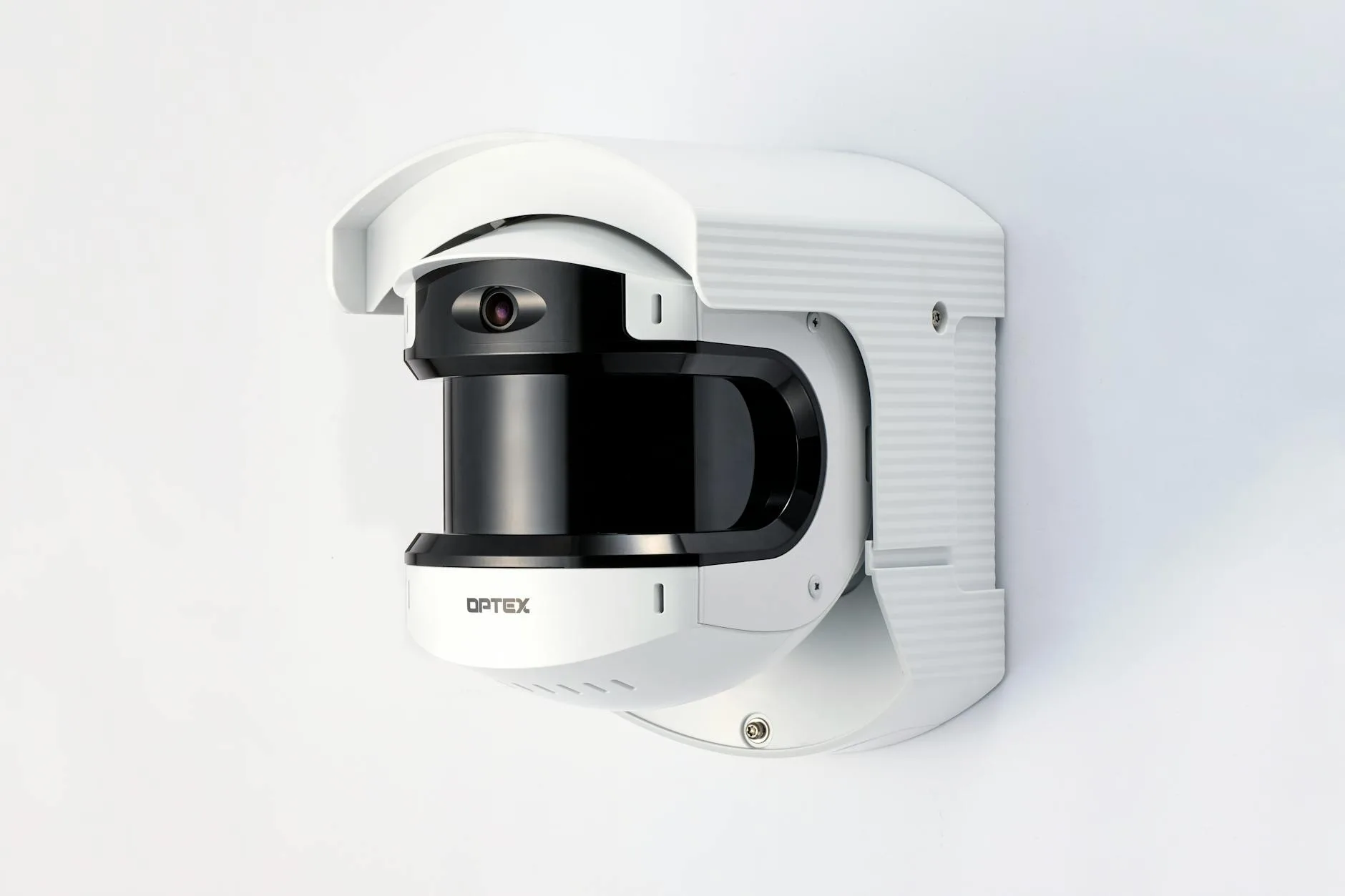
Smart cameras deserve special attention because the consequences of a breach are more personal than someone dimming your lights without permission.
- Buy from reputable brands — Ring, Arlo, Eufy, Google Nest, Hikvision. Avoid unbranded cameras from marketplace sellers with no clear manufacturer.
- Change default credentials immediately — especially on IP cameras that have web admin panels.
- Enable encryption — most reputable brands encrypt video in transit. Check that end-to-end encryption is enabled if offered (Ring offers it as an opt-in).
- Use local storage where possible — Eufy cameras, for example, store footage on a local base station rather than in the cloud, which reduces the attack surface.
- Position cameras thoughtfully — don’t point them at areas where privacy is expected (bathrooms, bedrooms) unless completely necessary. If a camera is compromised, you want the exposure to be limited.
For alarm sensors and cameras working together, make sure the entire alarm system uses consistent security — there’s no point having encrypted cameras if the PIR sensors are broadcasting in plain text.
What About Cheap Smart Devices?
That £8 smart plug from Amazon with a brand name you can’t pronounce? It probably works fine. It also probably connects to a cloud server in Shenzhen with security practices you’ll never be able to verify. For wider safety context, NCSC connected device security guidance is a useful reference.
This isn’t xenophobia — it’s pragmatism. UK and European regulations (particularly the Product Security and Telecommunications Infrastructure Act 2022, known as PSTI) now require manufacturers to meet minimum security standards for IoT devices sold in the UK. Since April 2024, devices must not ship with default passwords, must have a vulnerability disclosure policy, and must state how long they’ll receive security updates.
But enforcement is still catching up, and marketplace sellers often slip through the cracks. When buying smart home devices:
- Check for PSTI compliance — reputable brands will mention it
- Look for stated update periods — “this device will receive security updates until 2029” is a good sign
- Prefer devices that work locally — Zigbee and Z-Wave devices that connect through a hub (like SmartThings or Hubitat) rather than directly to a manufacturer’s cloud are inherently more private
- Read reviews for security mentions — Which? and tech publications like TechRadar regularly test IoT security
The Philips Hue range (starting around £40 for a starter kit from Currys or John Lewis), IKEA DIRIGERA smart home devices (from about £25), and TP-Link Tapo plugs (about £10 each from Amazon UK) all come from established companies with proper security practices.
Create an Ongoing Security Routine
Securing your smart home isn’t a one-time job. Set up a simple quarterly routine:
- Check for firmware updates on all devices
- Review connected device lists and remove anything unfamiliar
- Change passwords on any accounts involved in data breaches (use haveibeenpwned.com to check)
- Review camera footage access — who has shared access to your camera feeds?
- Check 2FA is still enabled — some apps occasionally reset security settings after updates
- Review your router settings — make sure nothing has changed (some ISP firmware updates can reset settings)
Put it in your calendar. Twenty minutes, four times a year. That’s all it takes.
What to Do If You Suspect a Breach
If something feels wrong — a camera moves on its own, a device shows activity when nobody’s home, or you get a login notification you didn’t trigger — act quickly:
- Disconnect the suspect device from your network immediately
- Change the password on its cloud account from a different device
- Enable 2FA if it wasn’t already on
- Check other devices on the same network for unusual activity
- Factory reset the suspect device before reconnecting it
- Report it — Action Fraud (actionfraud.police.uk) handles cybercrime reports in the UK, and the manufacturer should be notified too
Don’t panic. Most “suspicious activity” turns out to be a family member using a device you forgot about, or a firmware update changing settings. But it’s always better to check.
Frequently Asked Questions
Can hackers really access my smart home devices? Yes, but it’s far less common than headlines suggest. The vast majority of smart home hacks exploit default passwords or outdated firmware — both of which you can fix in minutes. If you’ve changed your passwords and enabled 2FA, you’ve eliminated most of the risk.
Do I need a separate router for smart home devices? You don’t need a separate router — most modern routers support a guest network, which achieves the same thing. Connect your IoT devices to the guest network and keep your computers and phones on the main one. This isolates smart devices from your sensitive data without buying extra hardware.
Are cheap smart plugs and bulbs safe to use? Since April 2024, the UK’s PSTI Act requires all consumer IoT devices to meet minimum security standards. Devices from established brands like TP-Link Tapo, IKEA, and Philips Hue are generally safe. Be cautious with unbranded marketplace devices that may not comply with UK regulations.
How often should I update my smart home device firmware? Check monthly at minimum. Most critical devices — cameras, locks, alarm systems — should be updated as soon as patches become available. Set a recurring reminder and spend 15-20 minutes going through each device’s app.
What’s the most important single thing I can do to secure my smart home? Enable two-factor authentication on every smart home account. It blocks the vast majority of account takeover attempts, even if your password is compromised. If you only do one thing from this guide, make it this.