You’re lying in bed at midnight and it suddenly hits you — that smart speaker sitting on the kitchen counter has been listening to every conversation you’ve had since Christmas. Your partner’s medical complaints, that argument about money, the kids’ homework chatter. Has Amazon or Google been storing all of it? The short answer is more nuanced than the headlines suggest, and there are practical steps you can take right now to control what gets recorded and what doesn’t. For related guidance, see our Security Camera Privacy Laws in the UK: What You Need to Know guide. For related guidance, see our Smart Plugs: What They Do and Best Uses guide.
In This Article
- How Smart Speakers Actually Listen
- What Gets Recorded and Stored
- Amazon Echo Privacy Controls
- Google Nest Privacy Controls
- Apple HomePod Privacy Controls
- Accidental Activations and How to Reduce Them
- Children and Smart Speaker Privacy
- UK Data Protection and Your Rights
- Practical Privacy Setup Guide
- Should You Keep Your Smart Speaker?
- Frequently Asked Questions
How Smart Speakers Actually Listen
There’s an important distinction between “listening” and “recording” that gets lost in most smart speaker privacy discussions. Your speaker is always listening in the technical sense — the microphone is powered on and the device is processing audio locally. But it’s not recording or sending anything to the cloud until it hears its wake word.
The Wake Word Process
Every smart speaker runs a small, local neural network that does one thing: detect its specific wake word (Alexa, Hey Google, Hey Siri). This processing happens on the device itself. The audio stream loops through a tiny buffer — usually about 1-2 seconds — and gets discarded continuously until the wake word triggers.
Once the wake word is detected, the speaker starts streaming your voice to cloud servers for processing. A light ring or indicator illuminates to show it’s active. The recording stops when the speaker determines your command is complete or after a timeout (typically 8-10 seconds of silence).
What Stays on the Device vs the Cloud
The local wake word detection model doesn’t send data anywhere. The audio from your actual commands, however, goes to Amazon, Google, or Apple servers for processing. This is where privacy concerns become legitimate — because those recordings are stored, sometimes reviewed by humans, and may be kept indefinitely unless you take action.
What Gets Recorded and Stored
Amazon Echo
Amazon stores every voice interaction with Alexa by default. Each recording includes the audio itself, a transcript, and a timestamp. Until 2019, Amazon retained recordings indefinitely with no auto-delete option. After significant public pressure, they introduced auto-delete settings — but they’re not enabled by default. You have to turn them on manually.
Amazon has also confirmed that some recordings are reviewed by human employees to improve Alexa’s accuracy. These reviewers can see the account’s first name and device serial number, though Amazon states they don’t have access to the full identity. After a Bloomberg investigation revealed this practice, Amazon added an opt-out toggle.
Google Nest
Google’s approach is similar but marginally more transparent. Voice recordings are stored in your Google Activity timeline alongside search history, location data, and YouTube watches. Google also uses human reviewers for a subset of recordings. In 2019, the ICO investigated Google’s data practices following leaked recordings from contractors, reinforcing the importance of active privacy management.
Auto-delete is available (3 or 18 months), and Google now pauses voice data collection by default for new accounts — though existing accounts may still have years of stored recordings.
Apple HomePod
Apple takes a different approach. Siri recordings are associated with a random identifier, not your Apple ID. After six months, the recording is dissociated from even that random ID. Apple also does not store audio by default — you have to opt in to sharing recordings for improvement purposes. It’s the most privacy-conscious of the three by a meaningful margin, though the HomePod’s smaller feature set reflects this priority.
Amazon Echo Privacy Controls
Deleting Voice History
You can delete recordings through the Alexa app or voice commands:
- Delete everything: Alexa app → More → Settings → Alexa Privacy → Review Voice History → Delete All Recordings
- Delete by date range: Same path, select a date range
- Voice command: “Alexa, delete everything I said today” or “Alexa, delete what I just said”
Setting Up Auto-Delete
- Open the Alexa app
- Go to More → Settings → Alexa Privacy
- Select “Manage Your Alexa Data”
- Under “Choose how long to save recordings,” select 3 months or 18 months
- Confirm the deletion of older recordings
We’d recommend setting this to 3 months. There’s no practical reason to keep voice recordings longer than that, and Alexa’s functionality isn’t affected.
Opting Out of Human Review
- Alexa app → More → Settings → Alexa Privacy → Manage Your Alexa Data
- Turn off “Help improve Alexa” and “Use messages to improve transcriptions”
Muting the Microphone
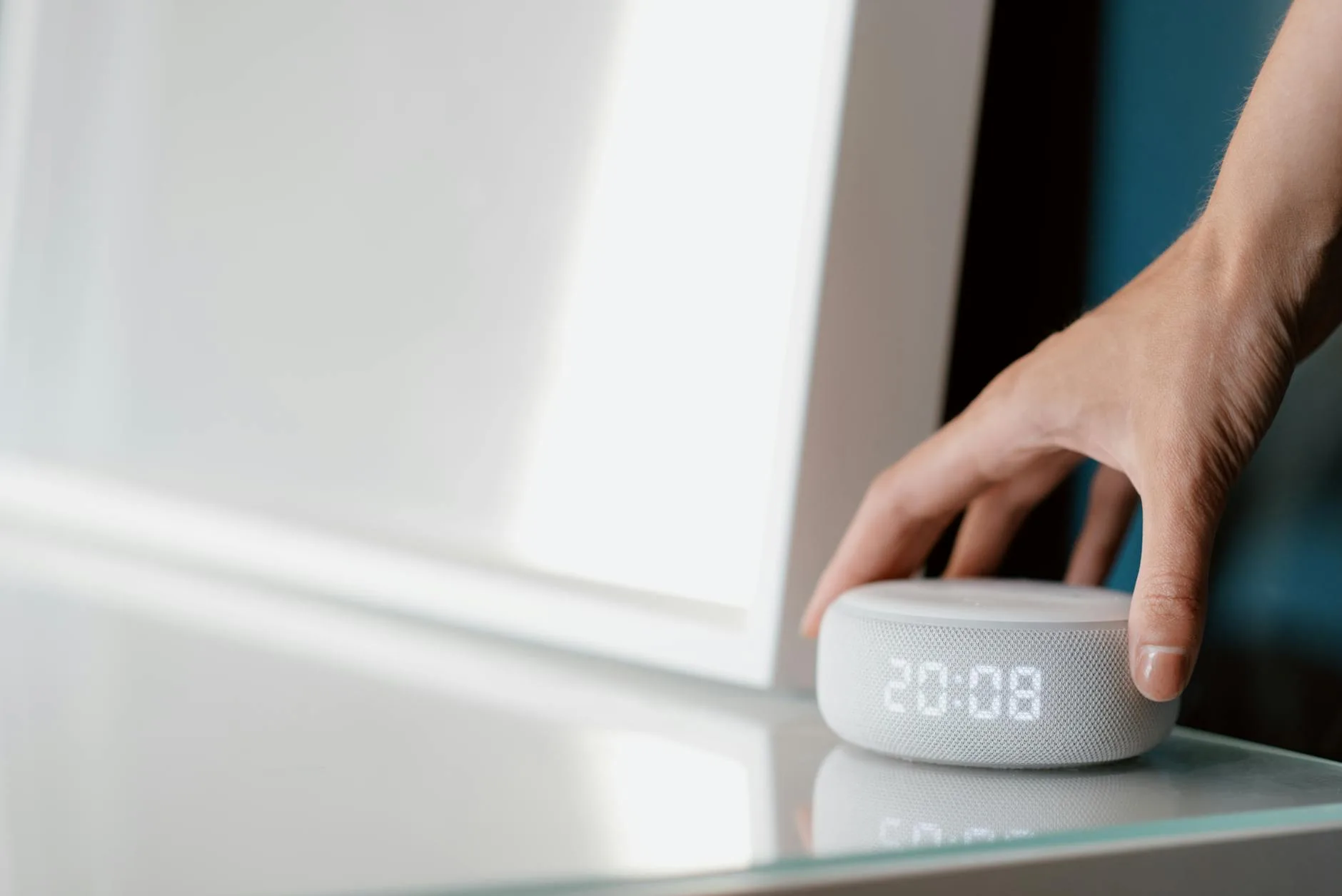
Every Echo device has a physical microphone mute button. When pressed, the light ring turns red and the microphone hardware is disconnected. This isn’t a software toggle — it physically cuts the circuit. Use it during sensitive conversations, at night, or whenever you don’t need voice control.
Google Nest Privacy Controls
Managing Voice Activity
- Open the Google Home app
- Tap your profile icon → Google Account → Data & Privacy
- Under “History settings,” tap “Web & App Activity”
- Toggle “Include voice and audio activity” off to stop future recordings
- Go to myactivity.google.com to review and delete existing recordings
Auto-Delete Setup
Google offers 3-month, 18-month, or 36-month auto-delete for activity data. Set this up under Data & Privacy → Web & App Activity → Auto-delete. As with Alexa, we’d recommend 3 months as the sensible default.
Guest Mode
Google Nest speakers have a Guest Mode that stops the device from saving voice interactions to your account. Say “Hey Google, turn on Guest Mode.” It’s useful when visitors are around or when you want a privacy break without muting the microphone entirely.
Microphone Mute
Google Nest devices have a physical switch (on the back for Nest Mini, on the side for Nest Audio). Like Amazon, this is a hardware switch that physically disconnects the microphone — not a software feature that could be overridden.
Apple HomePod Privacy Controls
Siri Privacy Settings
- Open the Home app on your iPhone
- Long-press the HomePod → Settings (gear icon)
- Scroll to “Siri History”
- Tap “Delete Siri History” to remove stored interactions
Opting Out of Audio Sharing
- iPhone Settings → Privacy & Security → Analytics & Improvements
- Turn off “Improve Siri & Dictation”
When this is off, Apple doesn’t store your voice recordings at all. The processing still happens on Apple’s servers, but the audio is discarded after generating a response.
“Hey Siri” Sensitivity
HomePod’s activation is generally more accurate than Alexa or Google, resulting in fewer false triggers. Apple’s on-device processing for the wake word is more sophisticated, which means less phantom activations from TV shows or conversations. That said, it still happens — particularly if someone in your household has a name that sounds similar to “Siri.”
Accidental Activations and How to Reduce Them
False activations are the real privacy problem. Your speaker mishears a word as its wake word and starts recording a conversation you never intended to share. Research from Northeastern University found that smart speakers can activate up to 19 times per day from TV audio alone.
Common Triggers
- Amazon Echo: Words sounding like “Alexa” — Alexander, Alexis, “I’ll ask her,” “electric car”
- Google Nest: Phrases similar to “Hey Google” — “Hey Kugel,” “okay cool,” some song lyrics
- Apple HomePod: Less prone, but “seriously,” “Hey sweetie” can occasionally trigger Siri
Reducing False Activations
- Change the wake word (Alexa only) — switch to “Echo,” “Amazon,” or “Computer” if “Alexa” triggers too often in your household
- Lower sensitivity — Alexa app → Devices → select speaker → Wake Word Sensitivity → reduce
- Position away from TV — most false activations come from television audio. Move the speaker to a different room or at least 2 metres from the TV
- Use the mute button — when watching TV or having private conversations, mute the microphone. Make it a habit, not an afterthought
- Check your activity log regularly — review stored recordings weekly to catch patterns. If you see recordings you don’t recognise, your speaker is activating when you don’t intend it to
Children and Smart Speaker Privacy
This is where smart speaker privacy recording becomes particularly concerning for UK parents. Children interact with smart speakers differently from adults — they ask the same questions repeatedly, they share personal information freely, and they don’t understand what happens to their voice data.
Age-Related Concerns
The UK Age Appropriate Design Code (also known as the Children’s Code), enforced by the ICO, requires online services to provide high privacy protections for children by default. All three major smart speaker manufacturers have responded:
- Amazon: Kids profiles on Echo devices apply stricter data controls and limit content. Alexa Kids responses are filtered
- Google: Digital Wellbeing filters and supervised accounts restrict data collection for accounts identified as under-13
- Apple: Parental controls extend to HomePod through Screen Time settings
Practical Steps for Families
- Set up kids’ profiles where available (Amazon does this best)
- Enable voice purchasing PIN — children ordering things by voice is not just a privacy issue, it’s a financial one
- Place speakers in shared spaces, not bedrooms — children tend to talk to smart speakers as though they’re friends, sharing things they wouldn’t say in front of adults
- Explain what the speaker does — age-appropriate conversations about how the speaker sends their voice “to a computer” helps children develop digital awareness
UK Data Protection and Your Rights
Under UK GDPR and the Data Protection Act 2018, you have specific rights regarding your smart speaker data. According to gov.uk guidance on data protection, these include:
Your Rights
- Right of access — request a copy of all voice recordings stored by Amazon, Google, or Apple. All three provide this through their respective privacy dashboards
- Right to erasure — request deletion of your voice data. This is what the “delete history” features implement
- Right to restrict processing — opt out of human review of your recordings
- Right to object — object to your data being used for purposes beyond voice assistant functionality (e.g., targeted advertising)
Making a Subject Access Request
If the in-app tools don’t satisfy your needs, you can make a formal Subject Access Request (SAR) to any of the three companies. They’re legally required to respond within one month. For Amazon, email privacy@amazon.co.uk. For Google, use the privacy tools at policies.google.com. For Apple, use privacy.apple.com.
When to Complain to the ICO
If you believe a smart speaker manufacturer isn’t handling your data correctly — for example, if they refuse to delete recordings or you discover data being shared without consent — you can complain to the Information Commissioner’s Office. This is rare in practice, but the option exists and carries real enforcement weight.
Practical Privacy Setup Guide
Here’s what we’d do with any new smart speaker out of the box. This takes about 10 minutes and dramatically reduces your privacy exposure without losing functionality:
Essential Steps (All Speakers)
- Enable auto-delete at the shortest period (3 months for Alexa and Google)
- Opt out of human review of recordings
- Disable voice purchasing or set a PIN
- Turn off personalised advertising linked to voice data
- Review your recording history now and delete anything you don’t want stored
Good Habits
- Mute the microphone during sensitive conversations, medical calls, or when discussing finances
- Check your voice history monthly — it takes two minutes and catches problems early
- Unlink unnecessary accounts — your speaker doesn’t need access to your email, calendar, and shopping history to play music and set timers
- Use routines instead of voice commands for recurring tasks — scheduled routines don’t generate voice recordings
The Nuclear Option
If privacy matters more than convenience, you can:
- Delete all recordings and disable voice history entirely (Google allows this; Amazon requires auto-delete minimum)
- Use the speaker for music and timers only — disable Skills, smart home integrations, and shopping features
- Keep the microphone muted by default and only unmute when you actively want to use a voice command
I’ve been running my Echo Dot with 3-month auto-delete, human review opted out, and microphone muted overnight for about eight months now. Alexa works the same as before — the privacy features don’t degrade functionality in any noticeable way.
Should You Keep Your Smart Speaker?
The privacy risks of smart speakers are real but manageable. The question isn’t whether they record — they do — but whether you’re comfortable with the controls available to you.
Reasons to Keep It
- Voice recordings are manageable — auto-delete, opt-out of review, and regular purging give you reasonable control
- Microphone mute is hardware-based — when the mic is off, it’s genuinely off. No software backdoor
- Utility is real — hands-free timers, music, smart home control, and accessibility features provide genuine value
- UK data protection is strong — GDPR gives you legal rights that American users don’t have
Reasons to Reconsider
- You forget to manage settings — if you’re not going to review recordings or set up auto-delete, the data will accumulate
- Children use it unsupervised — kids share information freely, and even with protections, the data is stored
- You discuss sensitive matters at home — legal, medical, or financial conversations near an always-listening device carry risk, however small
- You don’t trust the companies — all the privacy controls rely on Amazon, Google, or Apple honouring their commitments. If trust is the issue, no setting will fix that
For most households, the right answer is keeping the speaker with sensible privacy settings enabled. Think of it like your smartphone — it collects far more data than any smart speaker, but you manage the settings and make a judgment call on the trade-off. The speaker is no different, just more visible about the microphone.
If you’re choosing between platforms, our guide to choosing the right smart speaker covers sound quality, ecosystem compatibility, and features. For securing your broader setup, protecting your smart home from hackers covers network security and account hardening. And if you’re using your speaker as a home hub, understanding privacy controls becomes even more important since the hub connects to every device in your home.
Frequently Asked Questions
Do smart speakers record everything you say? No. Smart speakers continuously listen for their wake word using local processing, but they only record and send audio to the cloud after they hear it. The recording stops once your command is processed. However, accidental activations can capture unintended conversations.
Can smart speakers be hacked to listen without the wake word? It’s theoretically possible but extremely rare in practice. Security researchers have demonstrated vulnerabilities, but all three major manufacturers patch these quickly. Using a hardware microphone mute button eliminates this risk entirely since it physically disconnects the mic.
Is Alexa, Google, or Apple the most private? Apple is the most privacy-focused by a significant margin — it doesn’t store recordings by default and uses random identifiers instead of personal IDs. Google has improved with paused data collection for new accounts. Amazon is the least private by default but offers thorough controls if you configure them.
Can I use a smart speaker without any data being stored? With Google Nest, you can pause voice activity entirely. With Apple HomePod, recording storage is opt-in. Amazon Alexa requires a minimum auto-delete period (3 months), so some data is always temporarily stored. All three still process your voice on cloud servers in real-time, even if they don’t keep the recording.
Should I unplug my smart speaker at night? Unplugging is effective but unnecessary if you use the hardware microphone mute button, which physically disconnects the mic. Unplugging means you lose alarm, sleep sound, and morning routine features. Muting gives you the same privacy protection while keeping non-voice features active.