Geofencing smart home devices is useful when it removes small daily jobs, not when it tries to run the whole house by guessing where you are. The best setup is boring: your lights, heating, cameras and alarm modes react to phones arriving or leaving, but anything security-critical still has a manual confirmation or a backup rule.
In This Article
- What Geofencing Smart Home Devices Should Control
- Pick the Right App Before You Build the Fence
- Set the Home Boundary and Phone Permissions
- Build Arrival and Leaving Automations That Behave
- Make It Work for Two or More People
- Use Geofencing Safely with Alarms and Cameras
- Troubleshoot Missed Arrivals and False Triggers
- Frequently Asked Questions
What Geofencing Smart Home Devices Should Control
Geofencing uses your phone’s location to decide when you have entered or left a virtual area around your home. In smart home terms, that usually means an app sees your phone move inside or outside a home boundary, then changes a device, scene, mode or notification setting.
The mistake is treating it like magic. A phone is not a door sensor. GPS can drift, mobile signal can be patchy, and battery-saving settings can delay the app waking up. Good geofencing smart home devices use location as a nudge, not as the only safety check.
The strongest use cases are small, reversible jobs:
- Arrival lighting: turn on hallway, porch or kitchen lights when the first household phone comes home after dusk.
- Heating comfort: move a smart thermostat from eco to comfort when someone is nearby, rather than running heat all afternoon.
- Camera notifications: snooze indoor or driveway alerts when you arrive, so your own movement does not spam your phone.
- Alarm reminders: remind you to arm the system when the last person leaves, instead of arming it blindly.
- Appliance routines: start a robot vacuum, close smart blinds or turn off plugs once the house is empty.
I would be much more cautious with locks, garage doors and sirens. Unlocking a door because a phone appears close to home sounds clever until the phone is in a taxi outside, the location jumps, or someone else borrows it. For anything that affects access or safety, use geofencing to send a prompt: “You’re home. Unlock the door?” That extra tap is worth it.
For UK homes, geofencing also needs to fit normal messy life. Terraced streets, flats above shops, shared drives and narrow cul-de-sacs can all make a neat circular boundary less neat in practice. Start with one harmless automation, such as porch lights after sunset, and prove the location tracking works for a week before you connect alarms or cameras.
Pick the Right App Before You Build the Fence
There are two decisions here: which app sees your location, and which platform controls the devices. Keep those as simple as possible. The more cloud services you chain together, the more likely you are to end up with delays or automations that stop working after an app update.
Apple Home
Apple Home is usually the cleanest option if everyone in the house uses iPhones and you already have a HomePod mini, HomePod or Apple TV acting as a home hub. Apple says the Home app can run automations based on location, time, sensors or accessories, so it is a sensible starting point for arrival and leaving scenes. An Apple TV 4K is roughly £149-£169 in the UK, while a HomePod mini is usually about £99.
Apple’s downside is compatibility. It is excellent with HomeKit and Matter devices, but mixed-brand security kit can be uneven. If your cameras, alarm and plugs all live in separate apps, Apple Home may not see enough of them to be your only control point.
Google Home and Nest
Google Home calls this presence sensing. Google’s support page explains that you can allow the home to use phone locations for Home and Away routines, which is the setting that matters for geofencing. It is a good route if your house already revolves around Nest speakers, Android phones, Google cameras or compatible Matter devices.
The price can be low if you already own the hardware. A Nest Mini often sells around £49 in the UK, and many Android phones do not need anything extra for basic presence routines. The trade-off is that Google Home’s automations are easier than they used to be, but still less flexible than Home Assistant for advanced conditions.
Alexa and Ring
Alexa routines can use location triggers, and Ring’s own geofence feature is useful for security reminders. Ring describes geofencing as a way to get reminders to switch Alarm to Away Mode when you leave and to snooze some alerts when you come home. That is exactly the kind of cautious behaviour I like: reminders and notification control, not silent disarming.
Ring Alarm is not the cheapest path if you are starting from scratch. A Ring Alarm 5-piece kit is often around £219.99, contact sensor twin packs are about £35.99 from Ring UK, and extra motion detectors are usually around £29.99 each. Ring Protect and monitoring subscriptions add ongoing cost, so do the maths before building everything around it.
Home Assistant
Home Assistant is the best option if you want local control and proper logic. Its Zone integration lets you set map regions and use zone presence in automations, such as starting a vacuum after you leave or warming the house when you leave work. Home Assistant Green is officially the easy starter box; UK retailers commonly sell it from about £55-£90 depending on availability, with Zigbee/Thread adapters adding roughly £38-£55 if you need them.
The trade-off is time. Home Assistant is not hard if you are technical, but it asks more of you than Apple or Google. For a simple “turn on lights when I get home” setup, it may be more system than you need. For a house with mixed brands, alarms, thermostats, cameras and careful conditions, it is the one I would choose.
IFTTT
IFTTT can bridge services that do not talk to each other, and its own plans page still lists Free, Pro and Pro+ tiers. In UK terms, expect the paid plans to be priced in dollars, with Pro often around $2.99 per month and Pro+ around $8.99 per month before exchange-rate/card fees. It is handy for odd gaps, but I would not make it the main brain for security routines. Cloud-to-cloud automations can be slower than platform-native ones, and location triggers need reliability more than cleverness.
If your setup is mostly Apple, use Apple Home. Mostly Google, use Google Home. Ring alarm and cameras, use Ring for security reminders. Mixed-brand smart home with enough patience, use Home Assistant. That decision will save you hours.
Set the Home Boundary and Phone Permissions
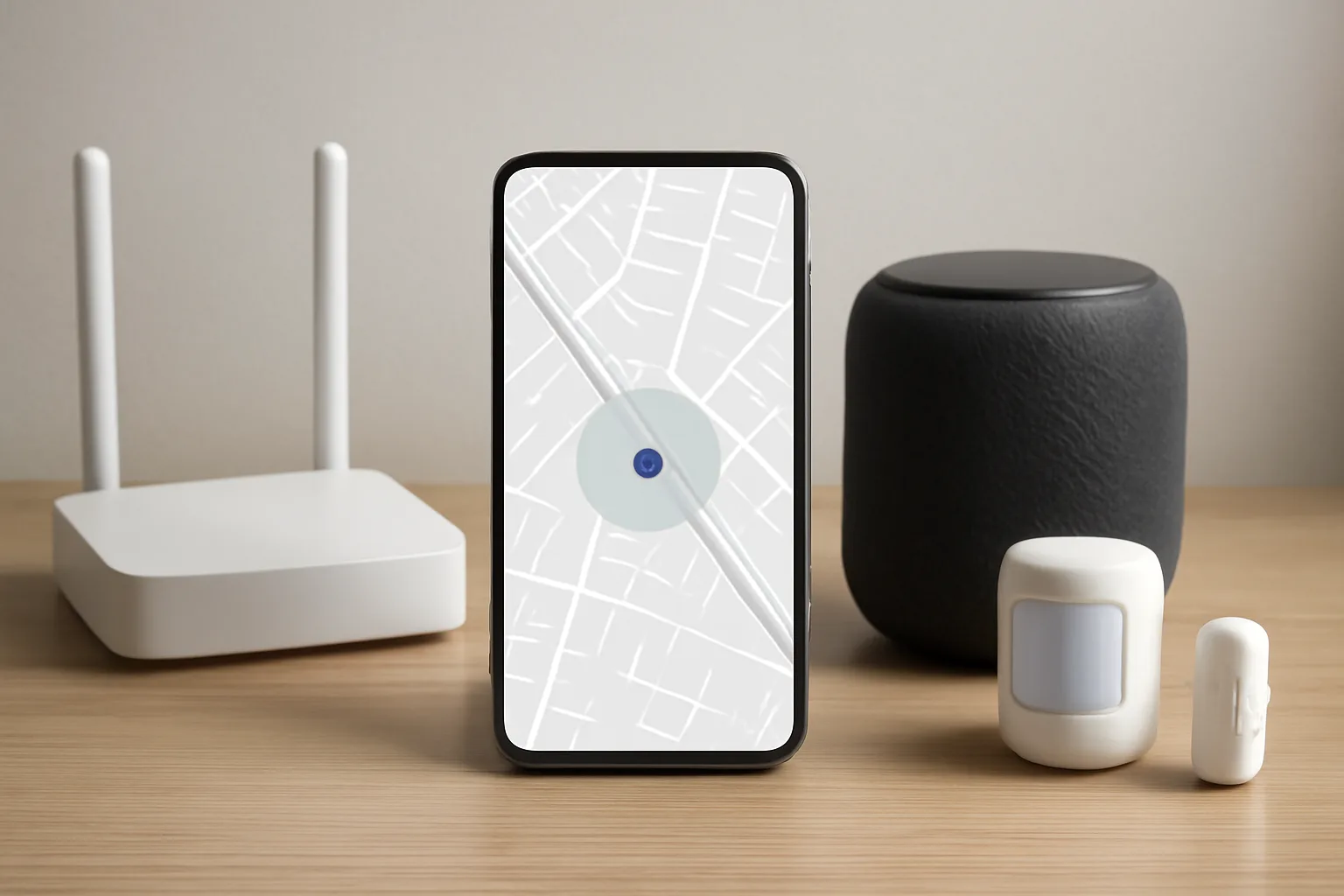
The setup process changes by platform, but the logic is the same. You set the home location, give the app permission to track the phone in the background, then test the boundary from real journeys rather than standing in the kitchen toggling settings.
- Check the home address first. In Apple Maps, Google Maps, Ring or Home Assistant, make sure the pin is on your actual house, not the end of the road or the centre of the postcode. UK postcodes can cover a row of homes, which is enough to make arrival triggers feel random.
- Start with a wider radius. A 100-150m boundary is often too tight on dense streets. Try 200-300m for arrival lighting or heating, then narrow it once you have a week of reliable logs. For flats or town centres, test carefully because the circle may cover shops, stations or nearby roads.
- Allow background location. On iPhone, the smart home app normally needs location permission beyond “While Using” for reliable leaving/arriving. On Android, check location permission, battery optimisation and whether the app can run in the background.
- Use the right phone. If you carry a work phone some days and a personal phone on others, choose the device that is always with you. Two half-used phones make geofencing worse, not better.
- Test with a harmless action. Use a lamp, hallway scene or push notification first. Do not begin with alarm modes, locks or garage doors.
For Google Home, go into Home settings and Presence sensing, then allow the home to use phone locations. For Apple Home, create an automation triggered by people arriving or leaving, then pick the scene or accessory. For Home Assistant, create a home zone and use device trackers from the companion app. For Ring, use Geofence under the app’s Modes and settings area where available.
I normally test with a note-style automation first: when I leave, send a notification saying “House is empty trigger fired.” It is dull, but it tells you whether the system is seeing the journey correctly before you let it touch devices. Leave that test running for a few days, including school runs, dog walks, train journeys and quick trips to the corner shop.
Build Arrival and Leaving Automations That Behave
A good geofence automation has three parts: the location trigger, the condition, and the action. If you only set the trigger and action, it will work in a demo and annoy you in real life.
Arrival automation
A simple arrival rule might look like this:
- Trigger: one adult’s phone arrives home.
- Condition: it is after sunset and the hallway light is off.
- Action: turn on the hallway, porch and kitchen lights at 40% brightness.
That condition matters. Without it, the lights come on at noon. Without the brightness cap, you get blasted at 11pm. If you already use smart lighting, you can use an existing evening scene from your smart lights setup instead of creating a new one.
For cost context, a basic arrival-lighting setup might be one smart bulb at £8-£15, or a Hue motion sensor at £39.99 indoors and £54.99 outdoors if you want motion confirmation as well as phone location. A smart plug for a side lamp is usually £10-£25 from Amazon UK, Argos or Currys. If you already have a hub, this is a cheap automation.
Leaving automation
Leaving routines need more restraint. My preferred version is:
- Trigger: last household phone leaves the home boundary.
- Condition: no motion has been seen indoors for 10 minutes.
- Action: turn off selected lights and plugs, lower heating, and send an alarm-arm reminder.
The 10-minute delay protects you from phone-location wobble. The motion condition stops the house going into Away mode while someone is still inside without their phone. This is where smart alarm sensors become useful beyond security. Door and window sensors, PIR sensors and keypads are explained in more detail in our smart alarm sensors guide, but the short version is that a £20-£35 sensor can save a lot of bad automation decisions.
Avoid one-trigger chains
Do not make one geofence event fire ten different services. If “I left home” turns off lights, arms the alarm, drops the thermostat, starts the vacuum, closes blinds, disables cameras and messages three apps, troubleshooting becomes miserable.
Split actions into small routines:
- Comfort: heating and lights.
- Security: cameras, alarm reminders and sensor checks.
- Energy: plugs, standby loads and appliance routines.
- Privacy: indoor camera behaviour and notification snoozing.
That way, if the vacuum routine misbehaves, you can disable it without breaking the alarm reminder.
Make It Work for Two or More People
Single-person geofencing is simple. Household geofencing is where most bad setups fall apart.
The rule you want is usually “when the first person arrives” and “when the last person leaves”. Not “when Andy leaves”, because that would turn the house off while Lauren is still at home. Not “when Juliet arrives”, because children’s phones may be off, on Wi-Fi only, or not allowed full location permissions. Keep security routines tied to adults’ phones unless the platform handles household presence cleanly.
For a couple or family, set up each person as a named household member in the main app rather than using one shared login. Shared logins blur who is home and can break notifications. Apple Home, Google Home and Ring all expect household member accounts. Home Assistant can create person entities and tie multiple device trackers to one person, which is handy if someone has a phone and a smartwatch.
The most reliable household rules are:
- First person home: switch on safe arrival lighting and stop indoor camera alerts.
- Last person leaves: turn off non-essential lights, set heating back and send an alarm reminder.
- Someone still home: do nothing except maybe send a private reminder to the person who left.
- Guest mode: disable automatic Away routines if a cleaner, relative or babysitter is in the house.
Guest mode is worth building early. A simple virtual switch called “Guest at home” or “Babysitter mode” can block Away actions until you turn it off. In Home Assistant, that can be an input boolean. In Apple or Google, it might be a scene or manual routine. It sounds fussy until the first time a grandparent is sitting in the lounge and the house decides everyone has left.
Shift work and school runs also need care. If someone leaves at 5am, you might want the hall light to come on softly, but not the kitchen speaker, robot vacuum or whole-house wake-up routine. Conditions by time of day are your friend.
Use Geofencing Safely with Alarms and Cameras
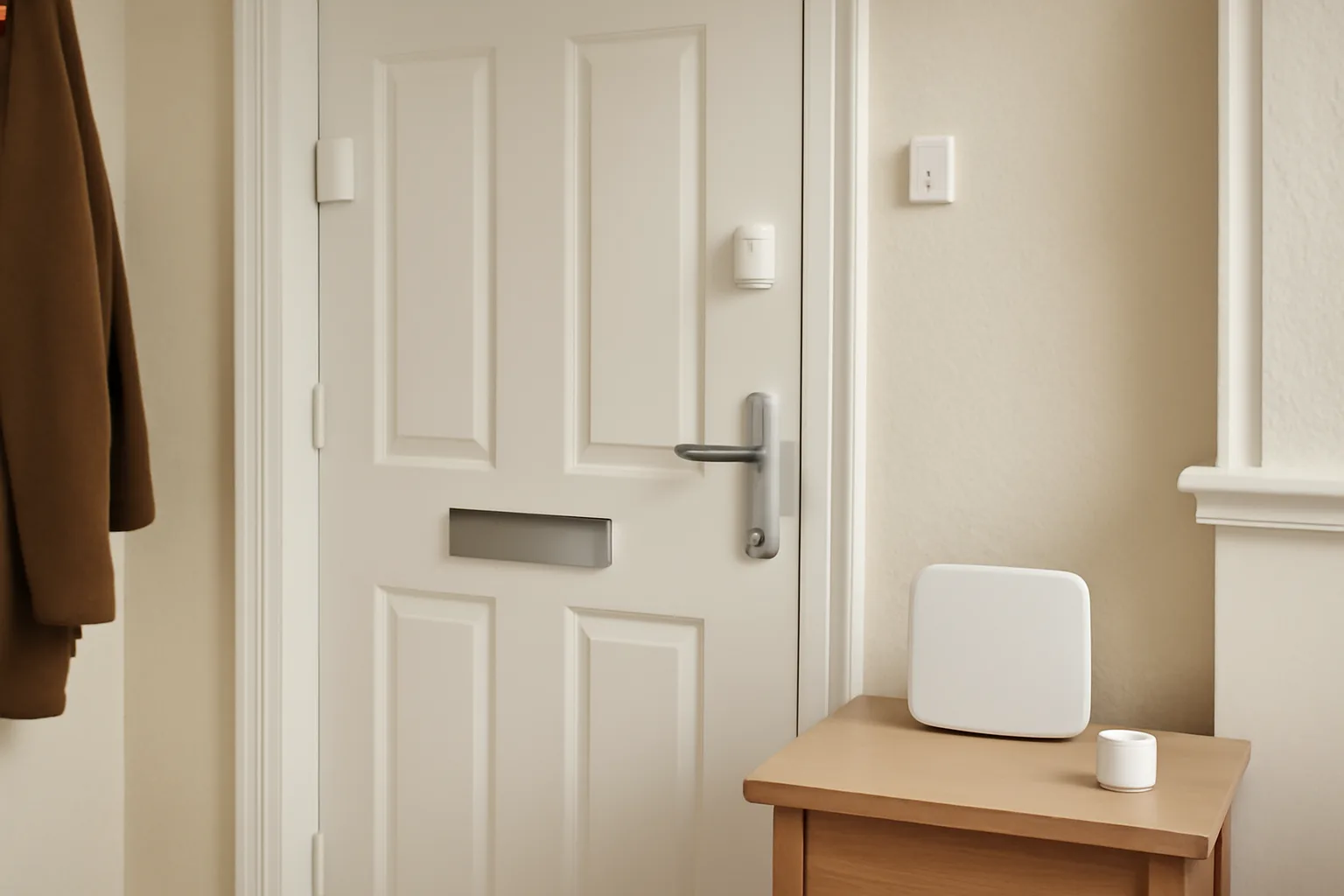
Geofencing is at its best with alarms when it helps you remember, not when it silently makes security decisions. A prompt to arm the alarm as you drive away is useful. A system that arms while a teenager is still upstairs because their phone died is not.
For smart alarms, I would use geofencing in three ways:
- Leaving reminder: when the last adult phone leaves, ask whether to arm Away mode.
- Arrival prep: when an adult phone arrives, turn on entrance lights and prepare the keypad or app.
- False-alarm reduction: use location plus sensors to avoid alert storms when you return home.
If you are still choosing the alarm kit, compare the platform rules before the siren volume. Our best smart alarm systems UK guide covers DIY and professional options, while professional monitoring versus self-monitoring explains what happens after an alert.
Camera geofencing has a privacy angle too. Indoor cameras should not record family life just because they can. If your system supports it, use geofencing to disable indoor camera notifications or recording when trusted household members are home, and re-enable them only when the house is empty. For outdoor cameras, use location to reduce your own arrival alerts, but keep motion zones and privacy masks set properly. If a camera overlooks a neighbour’s path or public pavement, read our UK security camera privacy guide before leaning on automation.
There is also a practical cost point. A better geofencing setup is often not a new hub; it is one or two confirmation sensors. A Ring contact sensor two-pack is £35.99 direct from Ring at the time of writing, Aqara door sensors are often about £15-£20 each, and a Philips Hue indoor motion sensor is £39.99. Add one sensor at the front door and one in the hallway, and your location automation has something physical to check.
Troubleshoot Missed Arrivals and False Triggers
If geofencing works for three days then misses one journey, do not rip the whole thing up. Work through the boring causes first. They are almost always the answer.
The phone is being put to sleep
Android battery optimisation is the classic culprit. Exempt your smart home app from deep sleep or restricted background use. On iPhone, check Location Services, Background App Refresh and that the app is allowed to use location as needed. Also check low-power mode, because some apps become less prompt when the phone is trying to save battery.
The home pin is wrong
Open the map used by the app and check the actual pin. If your postcode lands at the wrong end of the street, move the home location or widen the radius. This is common in new builds, converted flats and rural lanes where mapping data lags behind reality.
The radius is too tight
A tiny geofence feels precise, but it can miss events if the phone jumps from outside to Wi-Fi before the app reports the crossing. For most UK houses, I would start at 200-300m for arrival lighting and 300-500m for heating pre-warm. For alarms, use the geofence as a reminder rather than the only trigger.
Multiple apps are fighting
If Apple Home, Google Home, Alexa, Ring, IFTTT and Home Assistant are all watching your location and changing similar devices, you will get weird behaviour. Pick one location authority. Let that app decide home/away, then let it call other routines where needed.
The action is too ambitious
If your first routine tries to arm an alarm, turn off sockets, close blinds and start a vacuum, you will not know which part failed. Build one action at a time. My rule is one week of quiet reliability before adding the next security or energy action.
For most people, the best geofencing smart home devices setup is not expensive: use the phone platform you already have, add a few £10-£40 confirmation sensors, and keep IFTTT or Home Assistant for the gaps. I would not buy a new hub just for geofencing unless you already want broader automation. Spend the money where it improves reliability: better sensors, cleaner app permissions and simpler routines.
Frequently Asked Questions
What is geofencing in a smart home? Geofencing in a smart home uses your phone’s location to trigger automations when you enter or leave a set area, such as turning on lights when you arrive or sending an alarm reminder when you leave.
Do geofencing smart home devices work without Wi-Fi? Your phone can detect location using GPS and mobile data, but many smart home devices still need home broadband to receive the command. If your home internet is down, cloud-based routines may not run.
Is geofencing safe for smart locks? It is safer to use geofencing as an unlock prompt rather than an automatic unlock trigger. Phone location can drift, so a manual tap or keypad confirmation is better for doors.
Why does my smart home geofence trigger late? Late triggers are usually caused by battery-saving settings, weak GPS, a tight home radius, poor mobile signal or the app not being allowed to use background location.
Can geofencing work for more than one person? Yes, but each regular household member should have their own account or presence profile. Use first-person-home and last-person-leaves rules so one person leaving does not put the house into Away mode.
Do I need Home Assistant for geofencing? No. Apple Home, Google Home, Alexa, Ring and IFTTT can all handle basic location triggers. Home Assistant is worth it if you want mixed-brand control, local logic and more detailed conditions.