You’ve just unboxed your new Amazon Echo or Google Nest, set it up on the kitchen counter, and now you’re asking it for the weather and setting timers. That’s it — that’s where most people stop. But that £50 speaker sitting next to your kettle can actually run your entire home, from lights and heating to locks and cameras, all from a single voice command or tap on your phone. The trick is knowing which speaker doubles as a proper smart home hub and how to set it up so everything talks to each other without falling apart. For related guidance, see our Smart Alarm Sensors Explained: PIR, Door, Window & More guide. For related guidance, see our Smart Speaker Privacy: What They Record and How to Control It guide.
In This Article
- What Is a Smart Home Hub and Why Does Your Speaker Have One?
- Which Smart Speakers Work as Hubs?
- Matter and Thread: What They Mean for Your Setup
- Setting Up Your Smart Speaker as a Home Hub
- Connecting Smart Lights
- Adding Heating and Thermostats
- Smart Plugs and Switches
- Cameras and Doorbells
- Building Routines and Automations
- Common Problems and How to Fix Them
- Privacy and Security Considerations
- Best Smart Speaker Hubs to Buy in 2026
- Frequently Asked Questions
What Is a Smart Home Hub and Why Does Your Speaker Have One?
A smart home hub is the central brain that lets all your devices communicate. Without one, each gadget — your lights, thermostat, door lock — lives in its own app, on its own wireless protocol, completely isolated from everything else. A hub bridges those gaps, translating between Wi-Fi, Zigbee, Thread, and Bluetooth so your devices can work together.
Why Speakers Make Good Hubs
Smart speakers from Amazon and Google now have hub radios built directly into the hardware. The Amazon Echo (4th gen onwards) includes a Zigbee radio and Thread border router. The Google Nest Hub and Nest Mini (2nd gen) support Thread natively. Apple’s HomePod Mini does the same for HomeKit devices.
This means you don’t need a separate box like a Samsung SmartThings hub or a Philips Hue Bridge — the speaker handles it. That’s one less device plugged into your router, one less app to manage, and one less thing to go wrong. For most UK households, a smart speaker is the easiest and cheapest way to start controlling your home.
The Difference Between a Hub and a Bridge
A bridge connects devices from a single brand — the Hue Bridge only talks to Hue lights. A hub connects devices from multiple brands across multiple protocols. When your Echo acts as a Zigbee hub, it can control Zigbee lights from Philips, IKEA, Innr, and dozens of other manufacturers. That flexibility is what makes hub-enabled speakers so powerful.
Which Smart Speakers Work as Hubs?
Not every smart speaker has hub capabilities. Here’s what actually works:
- Amazon Echo (4th gen) — Zigbee hub, Thread border router, Matter controller. About £55 from Amazon UK or Argos. This is the one most people should buy.
- Amazon Echo Show 10/15 — same hub capabilities plus a screen for camera feeds and video calls. The Show 10 costs around £230 from Currys.
- Google Nest Hub (2nd gen) — Thread border router, Matter controller. Around £80 from John Lewis or Google Store. Great if you’re already in the Google ecosystem.
- Google Nest Mini (2nd gen) — Thread border router. About £30 and often on sale. No screen, but handles hub duties.
- Apple HomePod Mini — Thread border router, HomeKit hub. Around £99 from Apple or Currys. Best for Apple households but the smallest device ecosystem.
- Apple HomePod (2nd gen) — same hub capabilities, better speaker. About £299.
My Pick for Most People
The Amazon Echo 4th gen hits the sweet spot. It supports the widest range of devices, costs under £60, and Alexa’s smart home integration is the most mature. I’ve been running one as the hub for a three-bedroom house since 2024, and it handles about 30 devices without breaking a sweat. The only time it struggles is when my broadband drops out — but that’s a router problem, not an Echo problem.
Matter and Thread: What They Mean for Your Setup
You’ll see these two terms everywhere in 2026, and they actually matter.
What Is Matter?
Matter is a universal smart home standard backed by Amazon, Google, Apple, and Samsung. A Matter-certified device works with any Matter controller — so a Matter light bulb works with Alexa, Google Home, and HomeKit without needing separate apps or skills. The Connectivity Standards Alliance maintains the standard, and most major manufacturers now support it.
Before Matter, buying a smart device meant checking compatibility lists and hoping for the best. Now you look for the Matter logo and know it’ll work. It’s not perfect yet — some advanced features still need brand-specific apps — but for basic control (on/off, brightness, temperature), Matter just works.
What Is Thread?
Thread is a wireless mesh networking protocol. Unlike Wi-Fi, Thread devices create a mesh network where each device strengthens the signal for its neighbours. Unlike Zigbee, Thread uses IPv6, which means it can talk to your home network directly without needing a translation layer.
Your smart speaker acts as a Thread border router — the gateway between your Thread mesh and your Wi-Fi network. The more Thread devices you add, the stronger and more reliable your network becomes. In practice, this means fewer “device unavailable” errors and faster response times.
Do You Need Both?
Matter is the language. Thread is the transport. Many new devices use both — Matter over Thread — which gives you the best experience. But Matter also works over Wi-Fi, so existing Wi-Fi smart plugs and lights can get Matter updates without new hardware.
Setting Up Your Smart Speaker as a Home Hub
The setup process varies slightly between ecosystems, but the core steps are the same.
Amazon Echo Setup
- Plug in your Echo and wait for the orange ring.
- Open the Alexa app on your phone and tap “Devices” then the “+” icon.
- Select “Add Device” and choose “Amazon Echo.”
- Follow the on-screen prompts to connect the Echo to your Wi-Fi network.
- Once connected, go to Devices → your Echo → scroll down to “Smart Home Hub.”
- Verify that Zigbee and Matter are showing as enabled.
- The Echo will automatically become a Thread border router — no extra configuration needed.
Google Nest Setup
- Plug in your Nest Hub or Nest Mini.
- Open the Google Home app and tap “+” then “Set up device.”
- Choose “New device” and select your home.
- The app will find your Nest device automatically.
- Follow the prompts to connect to Wi-Fi and assign it to a room.
- Thread border router functionality activates automatically.
- To add Matter devices, tap “+” → “Set up device” → “Matter-enabled device” and scan the QR code.
Apple HomePod Setup
- Place the HomePod Mini near your iPhone.
- Your iPhone should detect it automatically — tap “Set Up” on the notification.
- Follow the prompts to assign it to a room and connect to Wi-Fi.
- Open the Home app → Home Settings → scroll to “Home Hubs.”
- Your HomePod should show as “Connected” — this means it’s acting as a hub.
- Thread support activates automatically.
Connecting Smart Lights
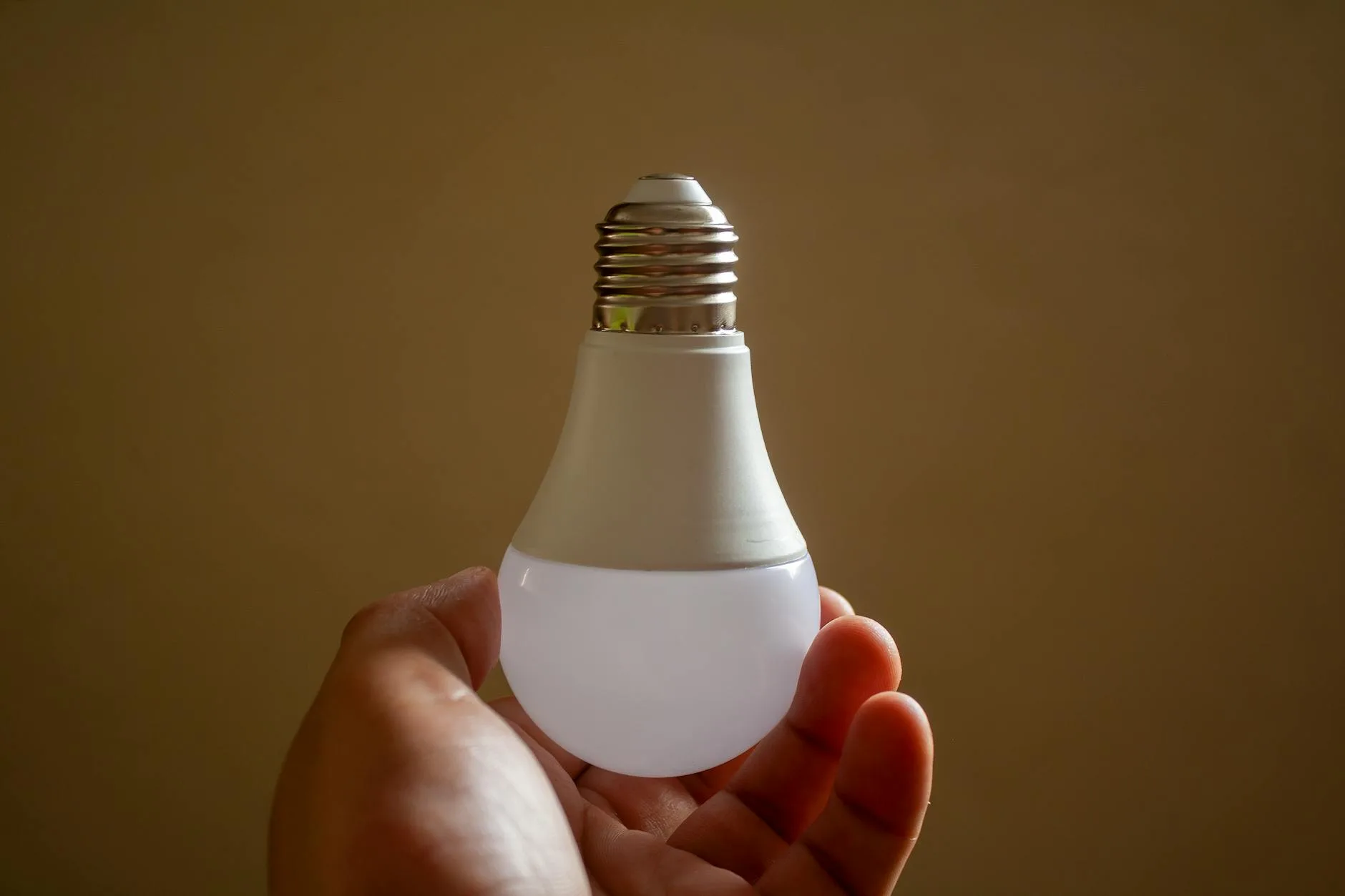
Lighting is where most people start, and it’s the most satisfying upgrade. Walking into a room and having the lights come on at exactly the right brightness and colour temperature — once you’ve experienced it, you can’t go back.
Best Lights for a Speaker Hub
- Philips Hue — the gold standard. The Starter Kit with Bridge costs about £130 from Argos, but individual Matter-compatible bulbs (about £20 each from Amazon UK) work directly with your speaker hub, no Bridge needed.
- IKEA TRÅDFRI — brilliant budget option. Zigbee bulbs from about £7 each. Work directly with the Echo’s Zigbee hub. I’ve had six of these in the kitchen for over a year and they’ve been rock solid.
- TP-Link Tapo — Wi-Fi bulbs from about £10. No hub required, but adding them to your speaker’s ecosystem means you can group them into rooms and scenes.
Setting Up Scenes and Schedules
Once your lights are connected, create scenes for different moods and times of day. “Movie night” could dim the living room to 20% warm white. “Good morning” could turn on the kitchen lights at 6:30am at full brightness. We’ve written a detailed guide on how to set up smart lighting scenes and schedules if you want to get into the specifics.
Adding Heating and Thermostats
This is where a smart speaker hub saves real money. A programmable thermostat controlled through your speaker can shave 10-15% off your heating bill — the Energy Saving Trust in the UK puts the average saving at around £75 per year with smart heating controls.
Best Thermostats for Speaker Control
- Google Nest Thermostat — works beautifully with Google Home, also supports Alexa and Matter. About £180 from Screwfix or Currys. Learns your schedule over time.
- Hive Active Heating — British Gas’s offering, very popular in the UK. About £180 for the thermostat and receiver. Works with Alexa and Google.
- tado° — European company, excellent geofencing. About £200 for the starter kit from Amazon UK. Detects when you leave the house and turns the heating down automatically.
Voice Commands for Heating
Once connected, you can say things like “Alexa, set the heating to 20 degrees” or “Hey Google, what’s the temperature in the living room?” It sounds gimmicky until it’s 11pm, you’re in bed, and you realise the heating is still on full blast downstairs. One voice command sorts it without getting up.
Smart Plugs and Switches
Smart plugs are the cheapest way to make existing devices smart. Plug a lamp, fan, or coffee machine into one and you can control it from your speaker.
What to Look For
- Energy monitoring — some plugs track how much electricity the connected device uses. Useful for spotting energy vampires.
- Matter support — future-proofs the plug across ecosystems.
- Compact design — some smart plugs are so bulky they block adjacent sockets. The TP-Link Tapo P110 is nicely compact and costs about £13 from Amazon UK.
- Scheduling — turn the Christmas tree lights on at 4pm and off at 11pm without thinking about it.
I’ve got a Tapo plug on the coffee machine set to turn on at 6:15am every weekday. The coffee’s ready by the time I get downstairs. It’s a tiny thing, but it makes mornings noticeably better.
Cameras and Doorbells
Your speaker hub can display camera feeds and send alerts when someone’s at the door. If you’ve got a screen-equipped speaker like the Echo Show or Nest Hub, you can see who’s at the front door just by saying “show me the front door camera.”
Best Options for UK Homes
- Ring Video Doorbell — the most popular in the UK, works natively with Alexa. About £100 for the basic wired version from Argos or Amazon UK. Battery version around £120.
- Google Nest Doorbell — excellent with Google Home, also works with Matter. About £180 from the Google Store. The battery version lasts about 2-3 months between charges in real-world UK use.
- Eufy Security cameras — no subscription fees, local storage. The Solo IndoorCam C24 costs about £30 and works with Alexa and Google.
A Word on Subscriptions
Ring requires a Ring Protect subscription (from £3.49/month) to store video footage beyond live view. Nest Doorbell gives you 3 hours of event history free but charges for longer storage via Nest Aware (from £5/month). Eufy stores footage locally on the camera or a base station — no monthly cost. Factor subscription costs into your budget; they add up over the years.
Building Routines and Automations
This is where a smart speaker hub earns its keep. Routines let you trigger multiple actions with a single command or automatically based on time, location, or sensor data.
Example Routines Worth Setting Up
- “Good morning” — turns on kitchen lights, reads the weather forecast, starts the coffee machine (via smart plug), sets the thermostat to 20°C
- “Leaving home” — turns off all lights, lowers the heating to 16°C, locks the front door, arms the cameras
- “Bedtime” — turns off all downstairs lights, sets bedroom lights to 5% warm white, locks the doors, sets the alarm for tomorrow
- “Movie time” — dims living room lights to 15%, turns on the TV (via smart plug or CEC), pauses notifications on the speaker
How to Create a Routine on Alexa
- Open the Alexa app and tap “More” then “Routines.”
- Tap the “+” icon to create a new routine.
- Under “When this happens,” choose your trigger — voice command, schedule, device event, or location.
- Under “Add action,” select what should happen — control devices, send announcements, play music, wait, and more.
- Arrange the actions in order and add delays if needed (for example, a 5-minute delay before the coffee machine turns off).
- Save the routine and test it with the trigger.
How to Create a Routine on Google Home
- Open the Google Home app and tap “Automations” at the bottom.
- Tap “+ Add” to create a new automation.
- Choose “Household” or “Personal” (household routines work for anyone in the home).
- Add a starter — voice command, time schedule, or device trigger like sunrise/sunset.
- Add actions — control devices, adjust media, share information.
- Save and test.
If you’re just getting started with smart home devices, our guide on the best smart home devices for beginners walks you through what to buy first.
Common Problems and How to Fix Them
After running a smart speaker hub for over two years, I’ve encountered most of the typical headaches. Here’s what goes wrong and how to sort it.
“Device Not Responding”
The most common issue, and usually the simplest fix:
- Check your Wi-Fi — if it’s down, everything stops working.
- Power cycle the unresponsive device (unplug for 10 seconds, plug back in).
- Move the device closer to your router or add a Wi-Fi mesh node.
- Check if the device firmware needs updating through its manufacturer app.
- Remove the device from your speaker app and re-add it.
Zigbee Devices Dropping Off
Zigbee mesh networks can have range issues, especially in larger homes with thick walls. The fix is to add more Zigbee devices (they act as repeaters) or position your Echo hub more centrally in the house. Zigbee smart plugs make excellent repeaters because they’re always powered on.
Routines Not Triggering
Usually a naming conflict or trigger overlap. Check that your device names are unique — if you’ve got “Living Room Light” and “Living Room Lights,” Alexa gets confused. Rename devices to be unambiguous: “Ceiling Light,” “Floor Lamp,” “Table Lamp.”
Slow Response Times
If there’s a noticeable delay between your command and the action, the issue is usually cloud processing. Alexa and Google both send your command to their servers and back. Thread and Matter devices with local processing are faster because they cut out the cloud round trip. Over time, more commands will process locally.
Privacy and Security Considerations
Putting a microphone and internet-connected hub in your home raises valid questions.
What Your Speaker Hears
Amazon, Google, and Apple all let you review and delete your voice history. Amazon’s privacy settings are in the Alexa app under Settings → Alexa Privacy. Google’s are in the Google Home app under Your data in the Assistant. I’d recommend reviewing these settings during setup — you can opt out of voice recording storage and limit data sharing.
Securing Your Smart Home
- Use a strong, unique Wi-Fi password — your smart home is only as secure as your network.
- Enable two-factor authentication on your Amazon, Google, or Apple account.
- Keep firmware updated — manufacturers patch security vulnerabilities regularly.
- Create a separate IoT network if your router supports it — keeps smart home devices isolated from your computers and phones.
- Review connected devices regularly — remove anything you no longer use.
The National Cyber Security Centre offers practical guidance on securing IoT devices at home, which is worth a read if you’re connecting multiple devices.
Best Smart Speaker Hubs to Buy in 2026
Best Overall: Amazon Echo (4th Gen)
The Echo 4th gen remains the best all-rounder for most UK homes. Zigbee, Thread, Matter, and Alexa’s enormous device compatibility list make it the most versatile hub you can buy for under £60. The sound quality is decent for a speaker this size — not audiophile-grade, but perfectly fine for kitchen listening and voice commands.
Best With Screen: Google Nest Hub (2nd Gen)
If you want a screen for camera feeds, recipes, and video calls, the Nest Hub is excellent. The 7-inch display is the right size for a bedside table or kitchen counter, and Google’s smart home controls are more visual and intuitive than Alexa’s for daily management. About £80 from John Lewis.
Best for Apple Homes: HomePod Mini
If your household is all-in on Apple — iPhones, iPads, Macs — the HomePod Mini is the natural choice. HomeKit integration is seamless, Siri handles basic commands well, and the sound quality punches well above its £99 price point. The device ecosystem is smaller than Amazon’s or Google’s, but Matter support is closing that gap. For help picking the right speaker for your ecosystem, see our guide to choosing the right smart speakers.
Budget Pick: Google Nest Mini (2nd Gen)
At around £30 (often less on sale), the Nest Mini is the cheapest way to get a Thread border router and Matter controller into your home. The speaker is tiny and tinny — you won’t be playing music on it — but as a voice-controlled hub for a bedroom or hallway, it does the job.
Frequently Asked Questions
Can I use a smart speaker as a hub without an internet connection? No — smart speakers require an internet connection for voice processing and most device communication. Some local commands (Thread-based devices) may work briefly during outages, but full hub functionality needs Wi-Fi and internet access.
Do I need a separate Zigbee hub if I have an Amazon Echo? No. The Echo 4th gen has a built-in Zigbee hub, so Zigbee devices like IKEA TRÅDFRI and Philips Hue bulbs connect directly without a separate bridge. You might still want the Hue Bridge for advanced features like firmware updates and entertainment sync.
Can I mix Amazon and Google devices in one smart home? Yes, especially with Matter. A Matter-certified device works with both ecosystems. You can have an Echo in the kitchen and a Nest Hub in the bedroom controlling the same lights and plugs. It gets fiddly with routines though — each ecosystem manages its own automations separately.
How many devices can a smart speaker hub handle? Amazon says the Echo supports up to 200+ Zigbee devices. In practice, most UK households will have 20-50 smart devices at most. I’ve run 30 devices on a single Echo without any performance issues. If you go above 50, consider adding a second Echo as a Zigbee repeater.
Is a smart speaker hub secure enough for door locks and cameras? As secure as any consumer smart home setup, provided you follow basic precautions: strong Wi-Fi password, two-factor authentication on your account, and regular firmware updates. The weak point is almost always the Wi-Fi password, not the hub itself.